How to Download Your ChatGPT History as Markdown Files for Permanent Storage in Notion or Obsidian
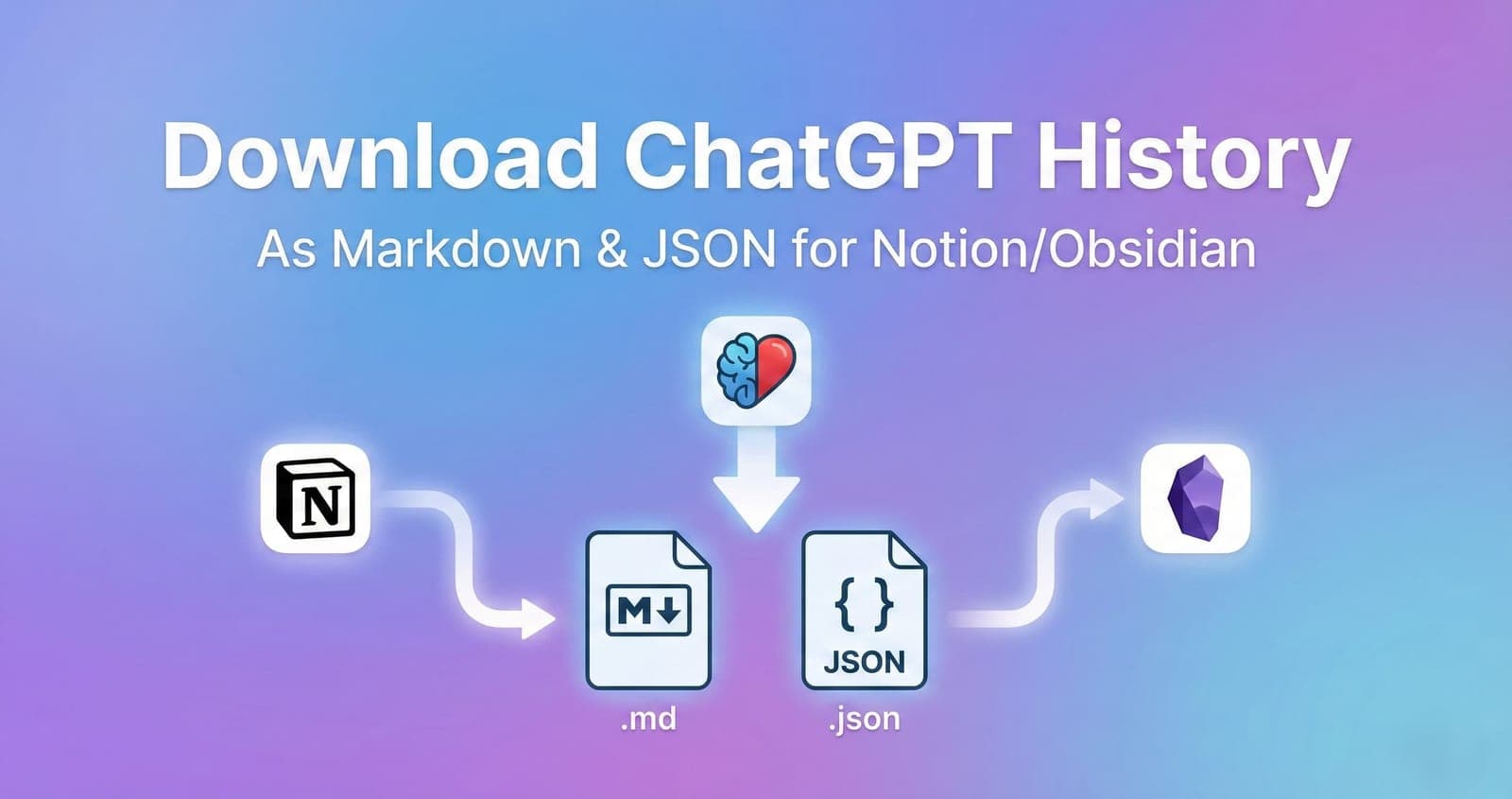
"I use Notion to organize my life, and I want my ChatGPT brainstorms to be part of that knowledge base." "I'm building a "second brain" in Obsidian, and my AI conversations are a crucial component I need to link and reference."
For knowledge workers, developers, and power users who rely on tools like Notion, Obsidian, or Roam Research, data portability is key. You don't just want to view your past ChatGPT conversations; you want to own them, organize them, and integrate them into your personal knowledge management system.
However, ChatGPT's official export only provides a raw JSON file that is difficult to read and import into other note-taking apps.
This article will show you how to use iLoveAI to convert and download your ChatGPT history as clean Markdown files (.md), making it effortless to archive your conversations permanently in your favorite tools.
Why Markdown is the Best Format for Your History
Markdown is a lightweight markup language that is perfect for storing text-based data like chat logs.
- Universal & Future-Proof: Markdown is plain text. It can be opened by any text editor on any platform, ensuring you will always be able to access your data, even decades from now.
- Perfect for Notion & Obsidian: Both Notion and Obsidian (and many others) have first-class support for importing Markdown files. Your chat history will be imported with proper formatting, including headings, lists, and code blocks preserved.
- Searchable & Linkable: Once in your note-taking app, your chat history becomes part of your searchable knowledge base, allowing you to link it to other notes and projects.
How to Download Your History as Markdown with iLoveAI
iLoveAI (https://ilove-ai.net/) is a free, privacy-focused tool that processes your data entirely in your browser. It includes a powerful feature to export selected conversations as individual files.
Here is the simple step-by-step process.
Step 1: Load Your Data into iLoveAI
First, export your data from ChatGPT (conversations.json) and load it into iLoveAI. (See our guide: How to View Your ChatGPT History).
Step 2: Select Conversations to Download
In the iLoveAI sidebar, you will see a list of your chat threads.
- Browse or search to find the conversations you want to save.
- Check the box next to each desired conversation. You can select one, multiple, or use "Select All".
- Click the "Export Selected Threads" button at the bottom of the sidebar.
Step 3: Choose "Download as Markdown (.md)"
An export options modal will appear.
- Look for the "Download as File" section.
- Click the "Download as Markdown (.md)" button.
(Note: If you are a developer and prefer raw data, you can also choose "Download as JSON (.json)".)
Step 4: Save Your File
Your browser will instantly download a single .md file containing all the selected conversations.
The file is neatly formatted:
- Each conversation title is a level 1 heading (
# Title). - Each message is clearly marked with its role (
**User:**or**Assistant:**). - All code blocks, lists, and tables from the original chat are preserved.
Importing into Notion or Obsidian
Now that you have your Markdown file, importing it is easy.
- For Notion: Simply drag and drop the
.mdfile onto a Notion page. Notion will automatically convert it into a new page with perfectly formatted blocks. - For Obsidian: Move the
.mdfile into your Obsidian vault folder. It will immediately appear as a new note in your file explorer, ready to be linked and tagged.
Take control of your knowledge. Start downloading and organizing your valuable AI conversations today with iLoveAI.